

3D print troubleshooting for iPhone, iPad and Android
Take a photo of the print, tap what looks wrong and add your printer and filament if you like, or read them from your G-code or 3MF file. Print Doctor tells you the most likely problem, how sure it is and the one change worth making first. If that doesn't help, the plan moves on to the next likely cause. It runs on your phone and needs no account.
How it works
You don't need to know what a defect is called. Describe what you see in plain words and Print Doctor does the sorting.
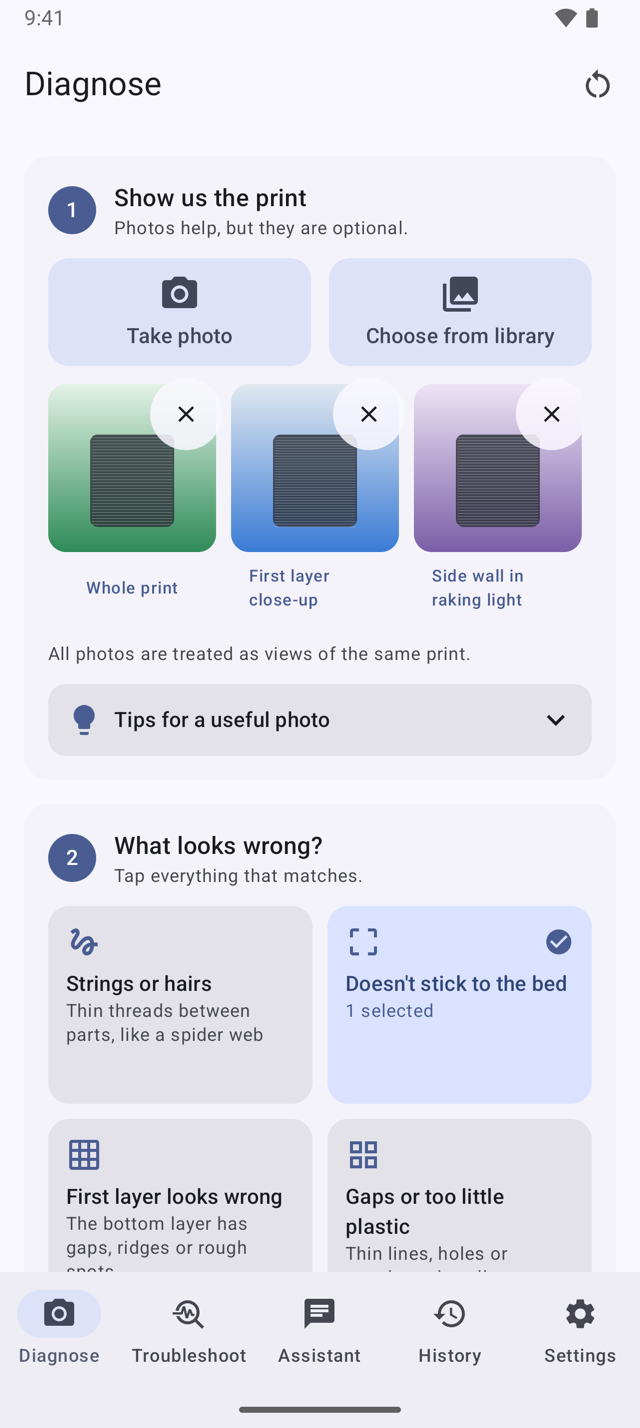
One photo is enough, a few angles are better: the whole print, the first layer, a side wall. Photos are optional, so you can also start without one.
Pick from groups like "Strings or hairs", "Doesn't stick to the bed" or "Layers shifted or cracked". Printer, filament and a short note make the advice more precise. You can read the settings from a G-code or 3MF file, or skip them.
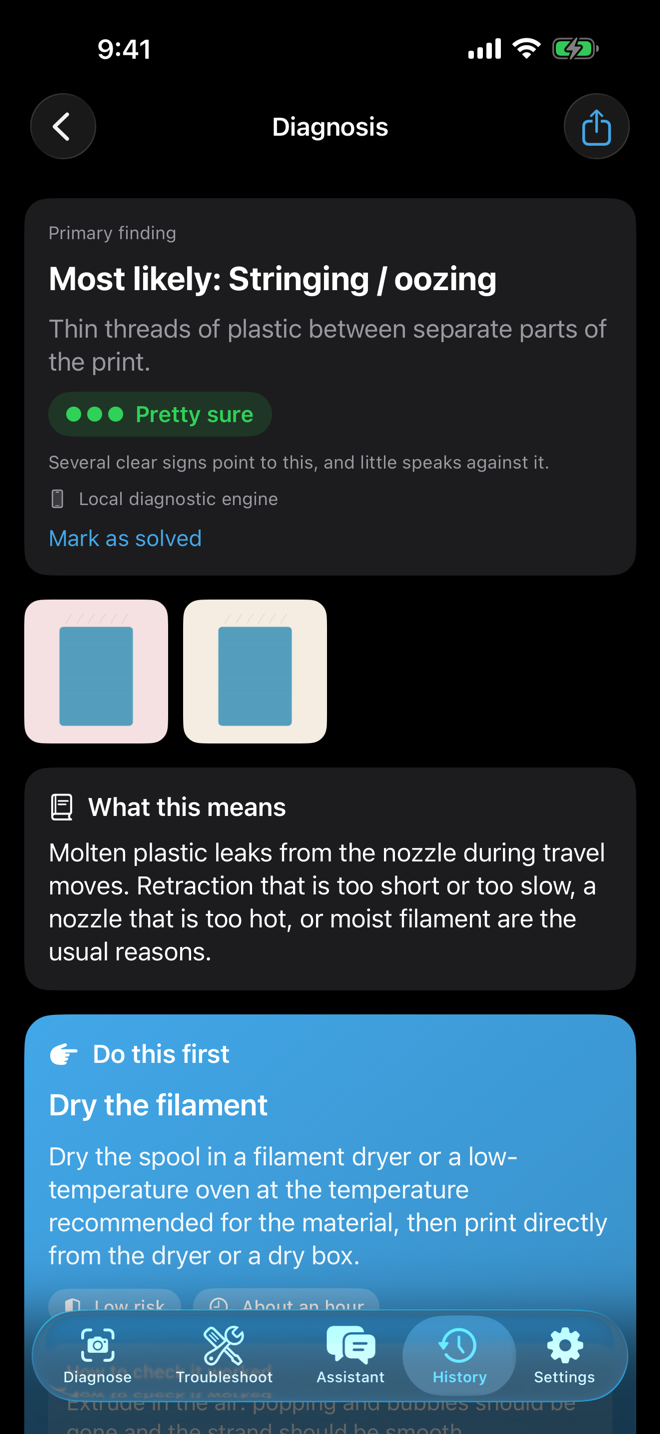
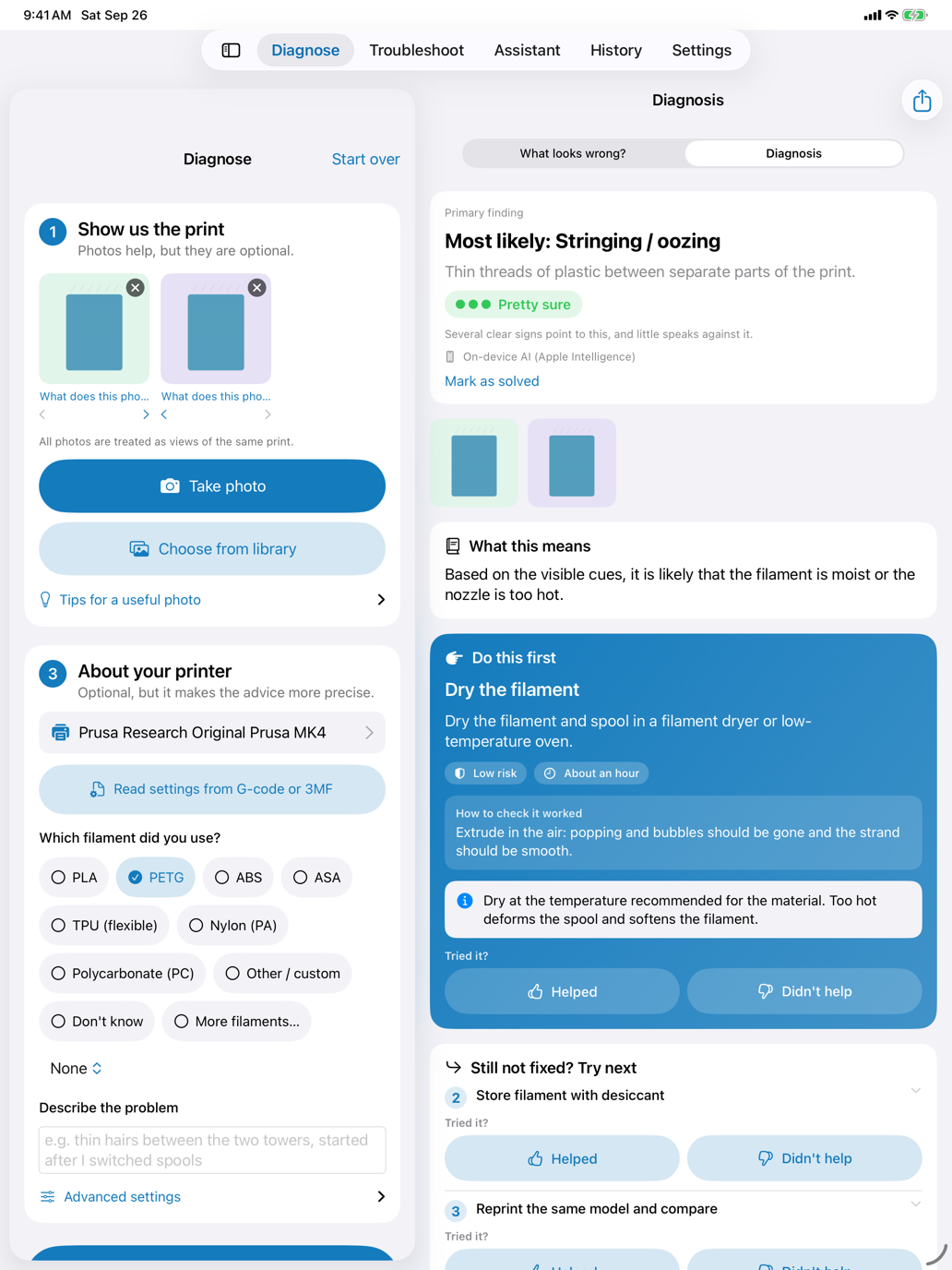
You get the most likely problem, how sure Print Doctor is and one thing to try first, with the place to change it in your slicer. If it didn't help, mark it, and the plan moves on to the next likely cause.
What you get back
Print Doctor keeps what it can see apart from what it suspects, and it also shows what speaks against a finding. When the clues are thin, it says so and asks a question instead of guessing.
Named in plain words with a one-line description, so you can hold it next to your print and compare.
Pretty sure, fairly likely or not sure yet. No made-up percentages, and a short note on what the rating is based on.
The smallest change that is likely to help, with safe ranges, its risk, roughly how long it takes and how to check that it worked. Change one thing, print again, compare.
Menu paths for Bambu Studio, OrcaSlicer, PrusaSlicer and Cura, plus a search term for the slicer's settings search in case a menu has moved.
Mark each step as helped or didn't help. If a fix didn't work, the plan moves on to the next likely cause. Safety notes appear wherever a hot nozzle, a heated bed, moving axes or mains power are involved.
Features
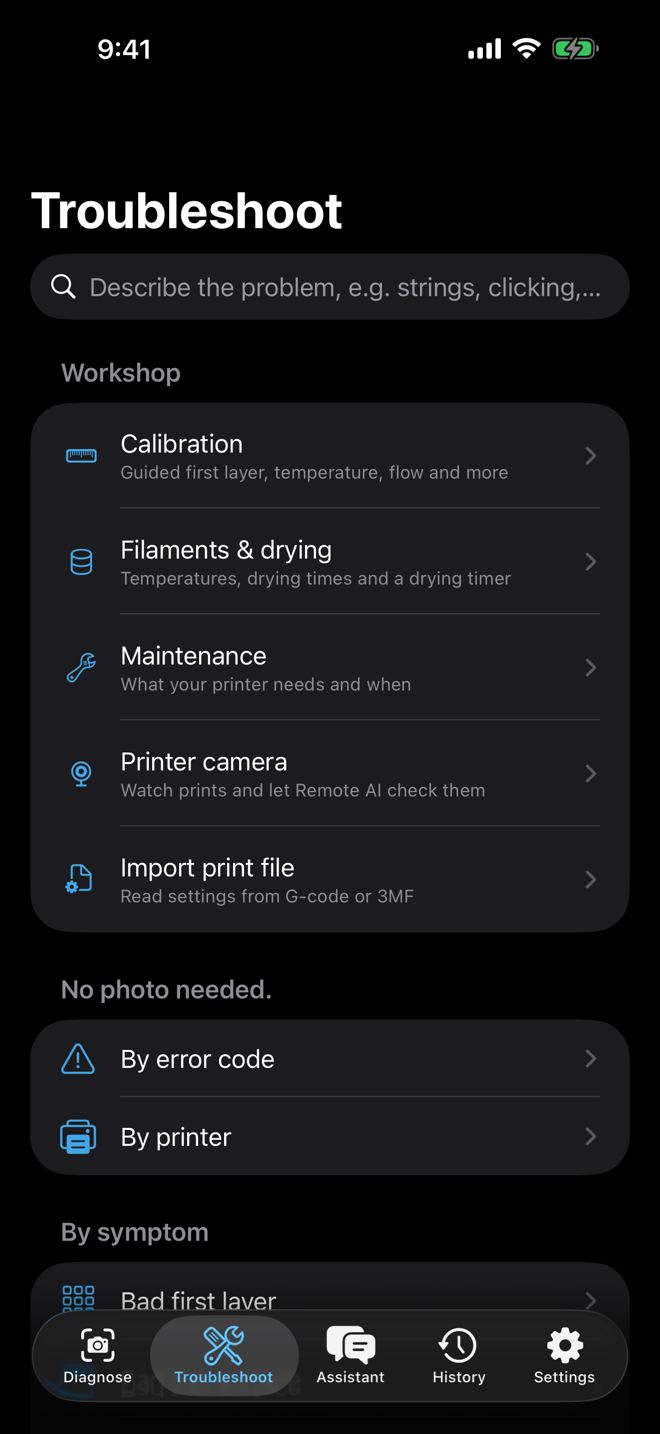
A clicking extruder or an error message on the display needs a different route. Print Doctor has one for that as well.
Start from what the printer does, not from what the print looks like.
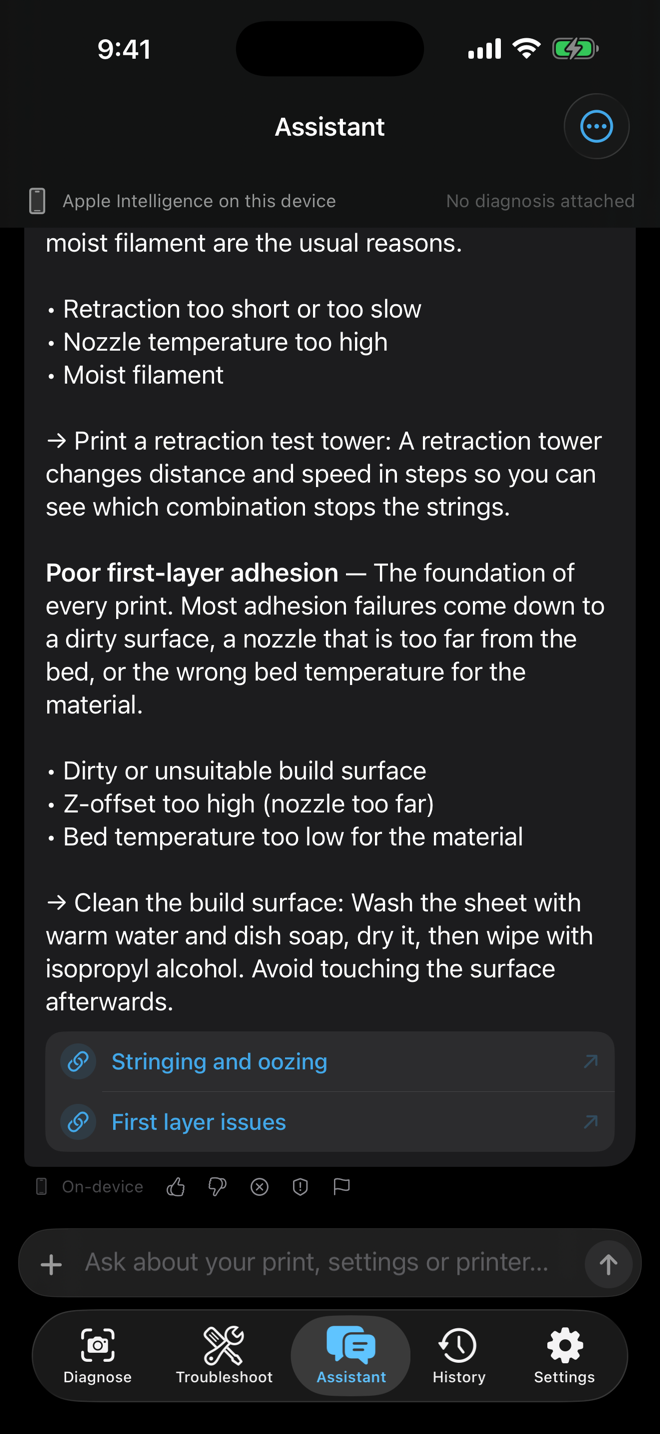
Ask follow-up questions about your diagnosis, a setting or a material.
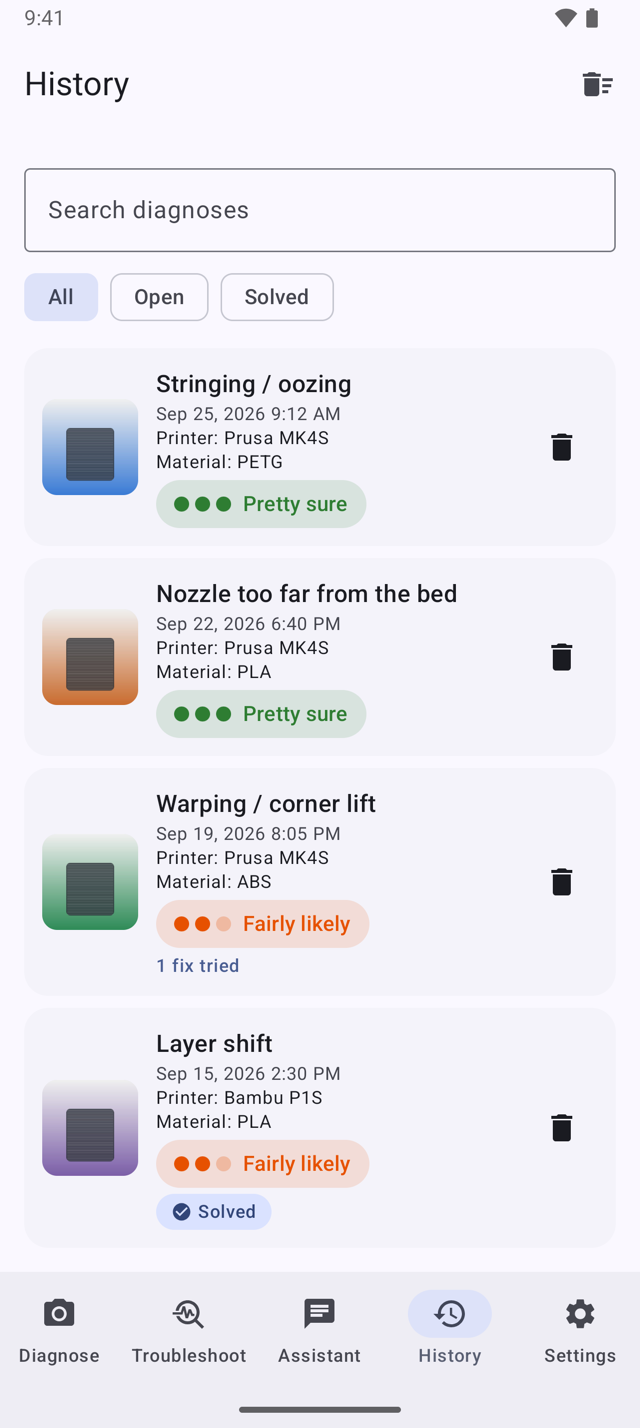
Keep track of what you tried and what worked.
On an iPad or an Android tablet, your input and the result sit side by side.
Workshop
The Workshop sits at the top of the Troubleshoot tab. It helps you calibrate, look after your filament and keep your printer in shape, on your phone and for free. Only the pre-print check and the AI checks of the printer camera need Pro.
Step-by-step wizards for the first layer, a temperature tower, flow, pressure advance and retraction. Enter what you see on the test print, get the value and save it to a material profile.
PLA, PETG, ABS, ASA, TPU, nylon, PC and common variants with nozzle and bed ranges, enclosure advice, moisture sensitivity and drying temperature and time. A drying timer tells you when the spool is done.
Tasks such as cleaning the build plate, checking the belts or lubricating the motion system, with intervals for your printer profile, due dates, a link to the manufacturer's schedule and optional reminders.
Open or share a print file from your slicer. Print Doctor reads the slicer, printer, material and settings on the device and fills them in once you have reviewed them. The file itself is not uploaded or kept.
Before a long print, add screenshots of your slicer preview. Remote AI points out risks such as unsupported overhangs, floating islands, long bridges or too little bed contact, and shows how to fix them.
Add an OctoPrint or Moonraker camera or a snapshot address in your local network and see the latest image. With Pro, Remote AI checks the image for a failing print. Bambu Lab cameras are not supported.
Values, intervals and menu paths are starting points. The instructions of your printer and filament manufacturer always come first.
Privacy
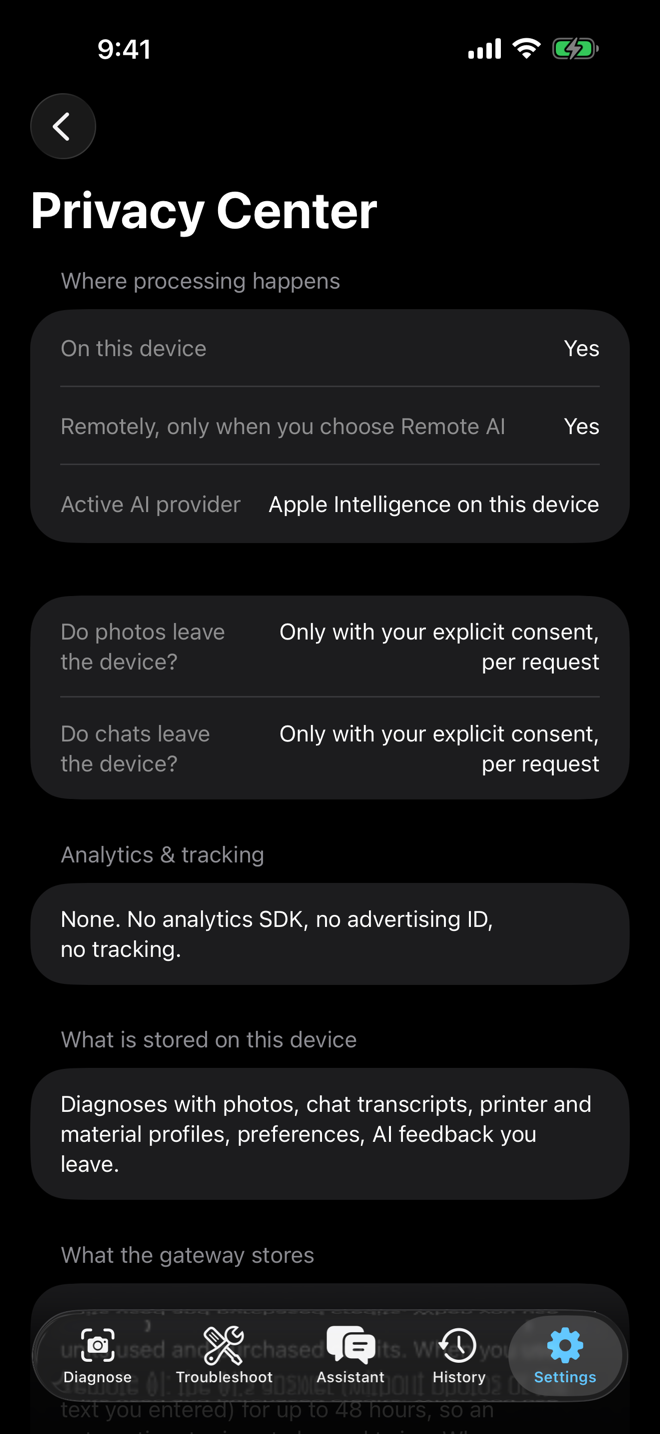
Print Doctor doesn't need a server to work. The diagnosis, the knowledge base and the assistant all run on the device.
Photos, notes, chats, history, calibration values and maintenance records are stored and analysed locally. Photos are saved without location or camera data. Print files are read on the device and not kept.
You don't sign up and you don't log in. Purchases go through your App Store or Google Play account.
No advertising, no advertising ID, no analytics or crash-reporting SDKs. No data is sold.
Remove single diagnoses or everything at once in Settings. Uninstalling the app removes the data as well.
Optional
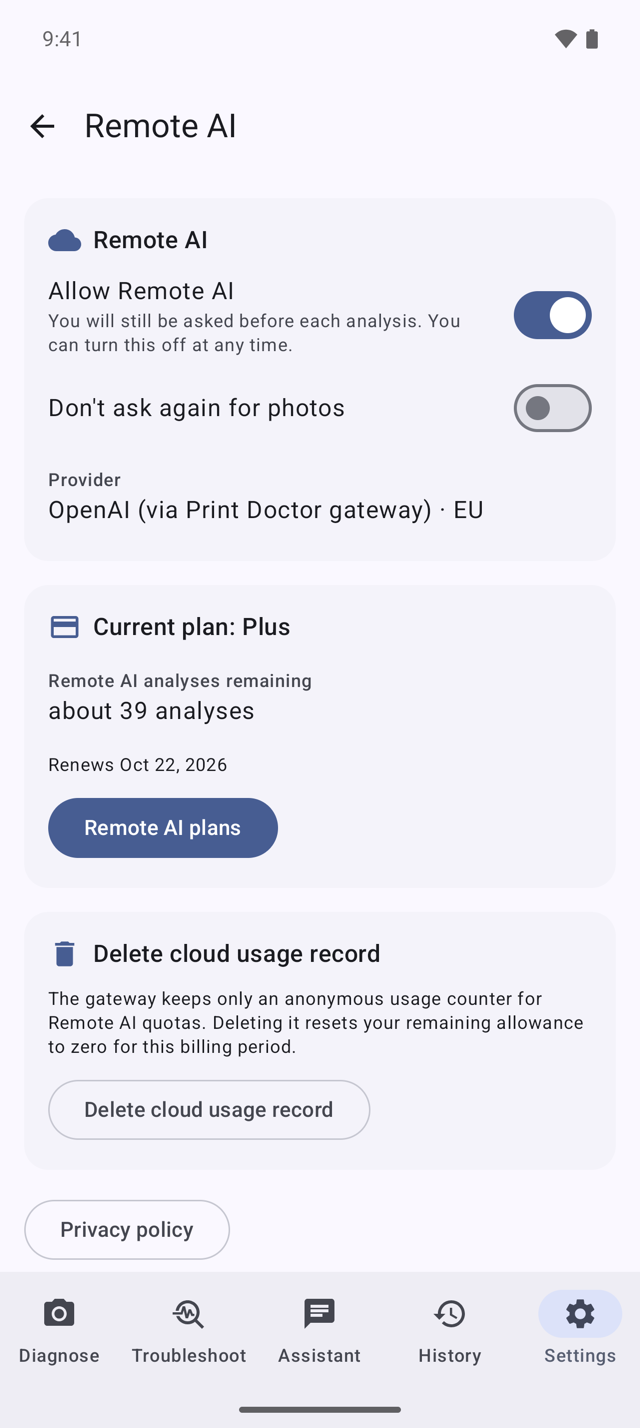
The local engine works with what you tick and describe. Remote AI goes one step further: a large multimodal model looks at the photos themselves. With Pro it also helps before and after a print: it checks slicer previews, compares before and after photos and looks at your printer camera. That needs a server, and servers cost money, so this is the only part of Print Doctor you pay for.
Diagnosis, outcome tracking, slicer paths, file import, the Workshop tools, error codes, history and the on-device assistant stay free and unlimited. The plans only pay for Remote AI.
$0 no subscription
no ads either
$5.99 per month
or $49.99 per year
$11.99 per month
or $119.99 per year
One-time purchases for when you only need Remote AI now and then. Units from packs never expire and are used once a plan's monthly units are gone.
Plus and Pro renew automatically until you cancel them in your App Store or Google Play account. Units included in a plan reset every month and don't carry over. Prices are shown in US dollars; the store shows the final price for your country before you buy. License agreement (EULA)
Printers
Print Doctor knows 263 FDM printer models released between 2017 and 2026 and links each one to the manufacturer's own documentation. If your printer isn't listed, the diagnosis still works with any FDM printer. The advice is just less specific.
Print Doctor is an independent app and is not affiliated with, endorsed by or sponsored by Prusa Research, Bambu Lab, Creality or any other printer manufacturer. Manufacturer names are used for identification only. Print Doctor is a product of Software Notion. Its suggestions don't replace the instructions of your printer or filament manufacturer, which always take precedence.
Print Doctor is a native app for each platform.
Yes. Diagnosis, guided checks, the error-code lookup, the Workshop tools, your history and the on-device assistant all work offline. You only need a connection for purchases, Remote AI and opening a manufacturer's article. A printer camera only needs your local network.
All local features are free and unlimited, including calibration, the filament guide, the maintenance planner and file import, and there are no ads. You only pay if you want to use Remote AI regularly, through Plus, Pro or a credit pack.
No. Photos and print files stay on your device. The only exception is Remote AI: if you switch it on and confirm a request, the photos or screenshots you chose are sent for that one request.
That depends on what you give it. Several clear signs lead to "pretty sure", a single vague one to "not sure yet" and a follow-up question. Treat the result as a well-informed suggestion, not a guarantee. Your printer manufacturer's instructions always come first.
Yes. The diagnosis works with any FDM printer. In a printer profile you can enter the nozzle, build surface and your manufacturer's temperature limits yourself.
iPhones and iPads with Apple Intelligence, and Android phones with Gemini Nano. On other devices, the local diagnostic engine answers from its knowledge base. Everything else works the same.
Remote AI requests are counted in units. A chat message uses the fewest, a photo analysis more, and more photos or a Deep Analysis use more again. The app shows how many you have left before you send anything.
In the subscription settings of your App Store or Google Play account. The plan stays active until the end of the period you paid for. Your local data and units from credit packs are not affected.
Software Notion in Uchte, Germany. Print Doctor is independent and not affiliated with any printer manufacturer.
Bambu Studio, OrcaSlicer, PrusaSlicer and Cura. For a suggested setting change it shows the menu path in your slicer and a search term, because menus move between versions. Pick your slicer in Settings, or Print Doctor takes it from the first file you import.
Print Doctor reads the slicer, printer, material and print settings on your device and shows them for review. Only the values you confirm are stored with the diagnosis. The file itself is neither uploaded nor kept.
More Remote AI units and Deep Analyses, plus four Remote AI features: the pre-print check of slicer previews, photos in the chat, the before-and-after comparison and checks of your OctoPrint or Moonraker camera. All local features are the same in every plan.
Support
A diagnosis doesn't match your print, a purchase went wrong or your printer is missing? Write to us. The more you tell us about the printer, the filament and what you see, the faster we can help.
Refunds for purchases are handled by Apple or Google.
Prefer e-mail? Write to contact@software-notion.de and mention Print Doctor in the subject.